
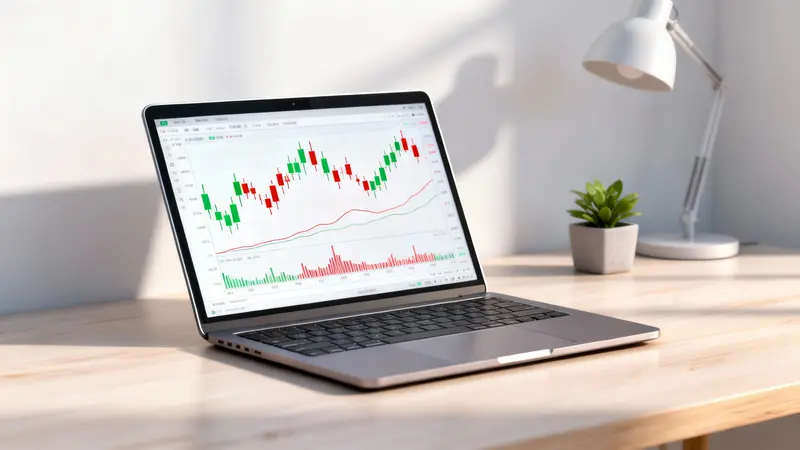
Diving into the world of forex trading can feel overwhelming, especially when faced with complex software. MetaTrader 4 (MT4) stands as the gateway for millions of traders, but learning its interface is the first crucial step. This comprehensive MetaTrader 4 guide is designed to transform you from a complete novice into a confident user. We will walk you through exactly how to use MetaTrader 4, from the initial download to executing your first trade, providing a clear tutorial for anyone starting their trading journey in 2026.
How To Use MetaTrader 4: What is MetaTrader 4 and Why Is It So Popular?
MetaTrader 4, commonly known as MT4, is an electronic trading platform developed by MetaQuotes Software. Released in 2005, it has become the de facto standard for online forex and CFD trading. It’s not a broker itself but rather a powerful piece of software that connects you to a broker’s trading servers. Its enduring popularity stems from a unique blend of accessibility for beginners and advanced features for seasoned professionals.
Key Features of the MT4 Platform
- User-Friendly Interface: While packed with features, the MT4 interface is intuitive, making it easy for beginners to navigate the core functionalities.
- Advanced Charting Tools: MT4 offers robust charting capabilities, allowing traders to analyze financial markets in real-time, apply various indicators, and customize chart views.
- Automated Trading: It fully supports automated trading through Expert Advisors (EAs). These are programs that can monitor markets and execute trades automatically based on a predefined strategy.
- Customization: The platform is highly customizable. Traders can install a vast library of third-party technical indicators, scripts, and EAs, many of which are available for free.
- Security and Stability: MT4 is known for its high level of security, encrypting data between the client terminal and the platform’s servers. Its stability ensures reliable performance even during high-volatility market events. For more details on security, consider platforms like Ultima Markets fund safety page.
MT4 vs. MT5: Which One Should You Choose?
A common question for new traders is whether to start with MT4 or its successor, MetaTrader 5 (MT5). While MT5 is newer, MT4 remains incredibly popular for specific reasons. The best choice depends on your trading needs.
Here is a breakdown of their key differences:
| Feature | MetaTrader 4 (MT4) | MetaTrader 5 (MT5) |
|---|---|---|
| Primary Market | Primarily Forex and CFDs | Forex, CFDs, Stocks, Futures, Options |
| Programming Language | MQL4 | MQL5 (More advanced, not backward compatible) |
| Technical Indicators | 30 built-in indicators | 38 built-in indicators |
| Timeframes | 9 timeframes | 21 timeframes |
| Community & Resources | Larger community, more free EAs/indicators | Growing community and resources |
For a deeper dive into this comparison, our detailed article can help you decide: How to Choose Between MT4 vs MT5.
How To Use MetaTrader 4: Getting Started with Your MetaTrader 4 Download
Your journey begins with setting up the platform. This process is straightforward and only takes a few minutes.
How to Download and Install MT4
You can typically download the MT4 installation file directly from your broker’s website. Many reputable brokers like Ultima Markets provide dedicated versions of the platform configured for their servers.
- ▶ For Windows: Simply download the .exe file and follow the on-screen installation wizard. It’s a standard installation process.
- ▶ For Mac: Since MT4 is a Windows-based application, you will need a compatibility layer like Wine. Most brokers provide a pre-packaged .dmg file that includes this, making installation as simple as dragging the application to your Applications folder.
- ▶ For Mobile: Search for “MetaTrader 4” on the Apple App Store (for iPhone/iPad) or Google Play Store (for Android). Download and install the official app by MetaQuotes Software Corp.
Connecting to Your Broker’s Server: Live vs. Demo Accounts
After installation, you need to connect to your trading account. You’ll be presented with two main options:
- Demo Account: This is a practice account that uses virtual money. It is absolutely essential for beginners. A demo account allows you to learn how to use MetaTrader 4, test strategies, and get comfortable with the market’s movements without risking any real capital.
- Live Account: This is a real trading account funded with your own money, where profits and losses are real. Only move to a live account after you have gained consistent experience on a demo account.
To connect, go to “File” > “Open an Account.” Your broker’s servers should appear. Select the correct one (your broker will specify whether it’s a Demo or Live server), and enter the login credentials they provided when you signed up.
A Guided Tour of the MT4 Interface
The MT4 screen is divided into several key windows. Understanding each one is fundamental to using the platform.
Key Windows in MetaTrader 4:
- Market Watch: Located on the top left, this window displays a list of financial instruments (like EUR/USD, Gold) and their real-time bid/ask prices. You can right-click to add or hide symbols.
- Navigator: Below the Market Watch, this window is your control center. Here you can switch between accounts and access your indicators, Expert Advisors (EAs), and scripts.
- Chart Window: This is the largest section, where you’ll spend most of your time. It graphically displays the price movement of a selected asset. You can open multiple charts at once.
- Terminal: At the bottom of the screen, this multi-tabbed window shows your open trades, pending orders, account history, news alerts, and more. The “Trade” and “History” tabs are the most frequently used.
How To Use MetaTrader 4: How to Place a Trade on MT4: A Core Skill
Executing trades is the primary function of MT4. Mastering this process involves understanding different order types and the mechanics of placing them.
Understanding Order Types: Market, Limit, and Stop Orders
Before you click ‘buy’ or ‘sell’, you must know what kind of order you are placing.
- Market Order: An instruction to execute a trade immediately at the best available current price. This is the most common order type.
- Pending Order: An instruction to execute a trade only when the price reaches a specific, predetermined level. There are four types:
- Buy Limit: Place a buy order below the current price.
- Sell Limit: Place a sell order above the current price.
- Buy Stop: Place a buy order above the current price.
- Sell Stop: Place a sell order below the current price.
Step-by-Step: Executing Your First Trade
Let’s walk through placing a simple market order.
- Open the ‘New Order’ Window: You can do this by pressing F9 on your keyboard, clicking the “New Order” button in the toolbar, or right-clicking on the chart and selecting “Trading” -> “New Order.”
- Select the Symbol: Ensure the currency pair or asset you wish to trade is selected in the “Symbol” dropdown.
- Set the Volume: This refers to the trade size, measured in lots. A standard lot is 100,000 units of the base currency. For beginners, it’s crucial to start with micro lots (0.01) to minimize risk.
- Set Stop Loss and Take Profit: Enter the price levels at which you want to automatically close the trade to limit potential losses (Stop Loss) or secure profits (Take Profit).
- Choose Order Type: For an instant trade, select “Market Execution.”
- Execute: Click “Sell by Market” if you believe the price will go down, or “Buy by Market” if you believe it will go up. Your trade will now appear in the “Trade” tab of the Terminal window.
How to Set a Stop Loss and Take Profit to Manage Risk
Using a Stop Loss (SL) and Take Profit (TP) is not optional; it is the foundation of responsible trading and risk management.
- Stop Loss (SL): This is an order that closes your trade automatically if the market moves against you by a specified amount. It acts as a safety net to prevent catastrophic losses.
- Take Profit (TP): This is an order that closes your trade automatically when it reaches a certain profit level, ensuring you lock in gains before the market has a chance to reverse.
You can set these values when you first place the trade or modify an existing trade by right-clicking it in the Terminal and selecting “Modify or Delete Order.” To learn more about this crucial topic, you can read our guide on developing strategies and managing risks.
How To Use MetaTrader 4: Leveraging MT4’s Analytical Tools for Beginners
MT4’s real power lies in its analytical capabilities. Learning to use its charting tools will help you make more informed trading decisions.
Customizing Charts and Timeframes
You can tailor charts to your analytical style:
- Chart Types: In the toolbar, you can switch between Candlestick, Bar, and Line charts. Most traders prefer candlestick charts as they provide more price information.
- Timeframes: The toolbar also contains buttons for different timeframes, from M1 (1-minute) to MN (monthly). A timeframe determines the period each candlestick or bar represents. Short-term traders might focus on M5 or M15, while long-term investors use H4, D1, or W1.
How to Add and Use Basic Technical Indicators
Technical indicators are calculations based on price and volume that help forecast market direction. To add one, drag it from the “Indicators” section in the Navigator window onto your chart.
Here are three fundamental indicators to start with:
- Moving Average (MA): Smooths out price action to help identify the trend’s direction.
- Relative Strength Index (RSI): An oscillator that helps identify overbought (>70) or oversold (<30) conditions.
- MACD (Moving Average Convergence Divergence): Helps identify changes in momentum, direction, and duration of a trend.
Drawing Trend Lines and Other Chart Objects
The toolbar on the right side of the chart contains drawing tools. You can use these to draw trend lines connecting highs or lows, identify support and resistance levels with horizontal lines, or use Fibonacci retracement levels to find potential reversal points.
Recommended Articles
Expand your trading knowledge with our other in-depth guides:
How To Use MetaTrader 4: Conclusion
MetaTrader 4 has remained the platform of choice for millions of traders for a reason. Its combination of powerful features, stability, and an accessible interface makes it the perfect starting point for anyone serious about trading. By following this guide on how to use MetaTrader 4, you have built a solid foundation. Remember, the key to success is consistent practice. Spend ample time on a demo account to hone your skills, manage your risk diligently, and never stop learning. Once you’ve mastered the basics, you might even consider exploring more advanced platforms like Ultima Markets MT5 for even more features.
How To Use MetaTrader 4: FAQ
1. Can I use MetaTrader 4 without a broker?
No. To receive live price data and execute trades, you need to connect MetaTrader 4 to a broker’s server. A broker provides the liquidity and market access. However, you can use the MT4 software offline to analyze historical chart data without being connected to a broker.
2. Is MetaTrader 4 still a good platform for beginners in 2026?
Absolutely. Despite the availability of newer platforms, MT4’s simplicity, rock-solid stability, and the enormous amount of free educational resources, custom indicators, and automated trading robots (EAs) make it an ideal and arguably less intimidating choice for beginners.
3. How can I start practicing with a risk-free demo account?
To get a demo account, you first need to choose a broker that offers MT4. During the sign-up process on the broker’s website, you will have the option to open a ‘Demo’ or ‘Practice’ account. They will then provide you with the login credentials and a link to download their version of the MT4 platform.
4. What is the difference between an Expert Advisor (EA) and an indicator?
An indicator is a tool used for market analysis. It applies a mathematical formula to price data and displays the result on the chart to help you make trading decisions (e.g., an RSI). An Expert Advisor (EA) is an automated trading system that can not only analyze the market but also automatically execute and manage trades on your behalf based on its programmed strategy.